How to Add New Users to Entri Dashboard
Last updated: August 7, 2026
This guide will walk you through the process of adding new users to your Entri.com dashboard. By adding users, you can grant team members access to your Entri account with specific roles and permissions.
Prerequisites
You must be logged into your Entri.com account
You must have administrator privileges to add new users
You need the email address of the person you want to invite
Step-by-Step Instructions
Step 1: Open Account Settings
In the left menu of your Entri dashboard, locate Account Settings
Step 2: Navigate to Users
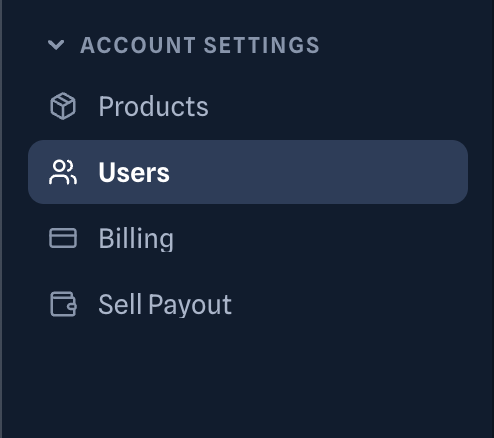
Step 3: Open the User Management Tab
Once you're on the Users page, you'll be able to view and manage users in your account. Click the "Add new user" button to begin the process of inviting a new team member.

Step 4: Enter User Details and Select Role
A form will appear where you need to:
Enter the user's email address in the designated field
Select the appropriate role from the dropdown menu. Available roles include:
Admin
Developer
Billing
Analyst
For detailed information about what each role can access and do, please refer to our User Roles and Permissions guide.
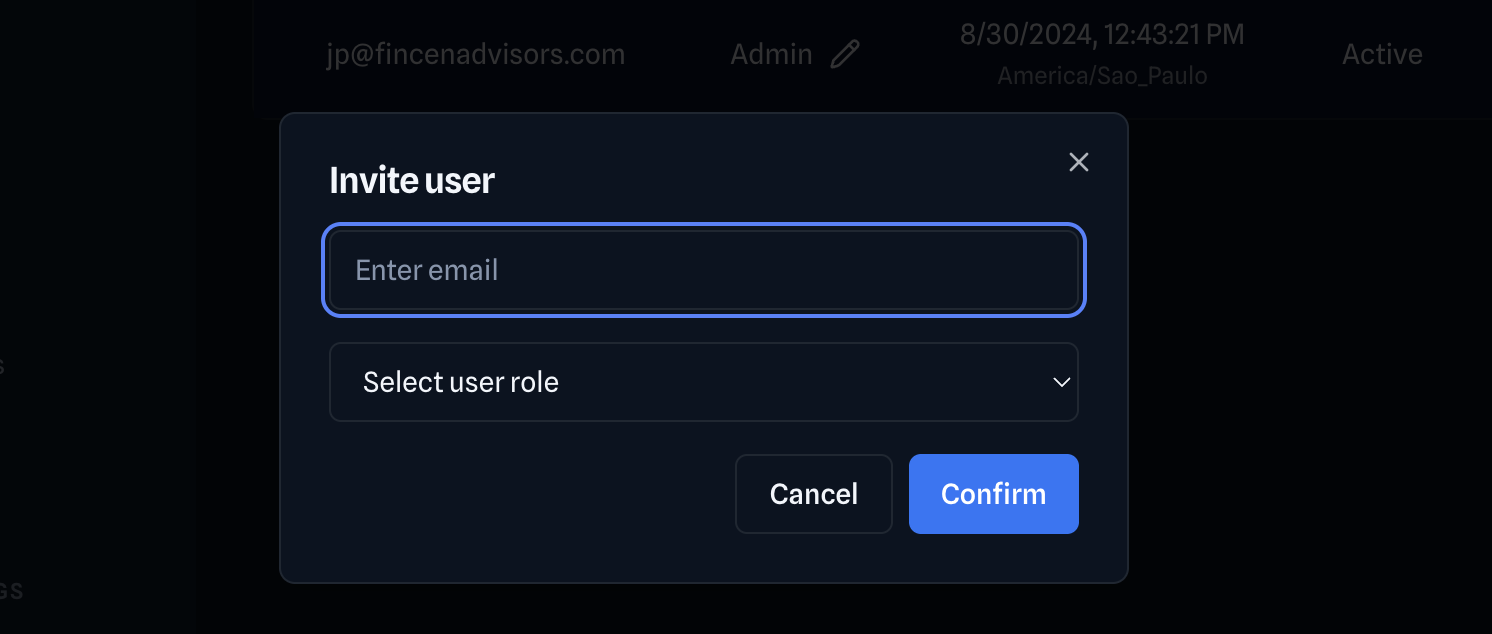
Click "Confirm" to send the invitation
What Happens Next
After you click "Confirm":
The new user will receive an email invitation at the address you provided
This email will contain instructions on how to complete their account creation
They will need to follow the email instructions to set up their password and activate their account
Once activated, they will be able to access the Entri dashboard with the permissions associated with their assigned role
Important Notes
Email Verification: The invited user must have access to the email address you provide, as this is where they'll receive their account activation instructions.
Role Permissions: Choose roles carefully, as they determine what parts of the dashboard and which features the user can access.
Account Activation: New users must complete the email verification process before they can access the dashboard.
Troubleshooting
User didn't receive the invitation email? Check that the email address was entered correctly and ask them to check their spam/junk folder.
Need to change a user's role after invitation? You can modify user roles from the same User Management tab after they've activated their account.
Next Steps
Once your new user has completed their account setup, they'll be able to log in and access the Entri dashboard according to their assigned role permissions. You can always return to the User Management tab to add more users, modify existing user roles, or remove users as needed.
Need additional help? Contact our support team through the Entri dashboard or visit our help center for more resources.