How to Find Your API Secret Key in Entri Dashboard
Last updated: August 5, 2025
This guide will walk you through the process of locating and copying your API secret key for any of your AppIds in the Entri.com dashboard. You'll need this secret key to authenticate your API calls.
Prerequisites
You must be logged into your Entri.com account
Step-by-Step Instructions
Step 1: Access Your User Menu
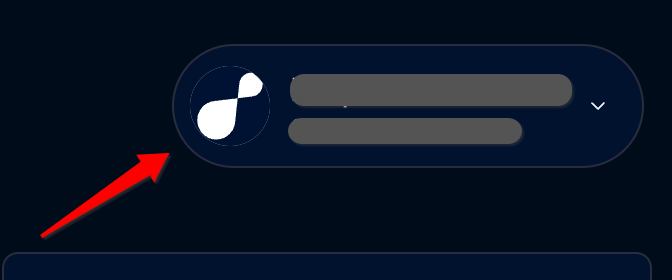
In the top-right corner of your Entri dashboard, locate your user information area and click on it to open the user menu.
Step 2: Navigate to Account Settings
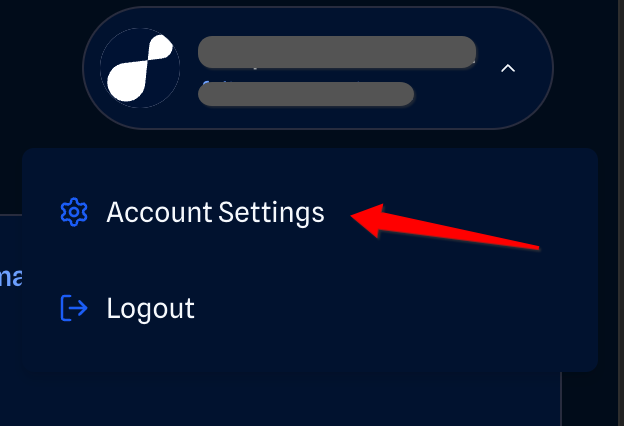
From the dropdown menu that appears, select "Account Settings" to access your account configuration page.
Step 3: Open the App Settings Tab
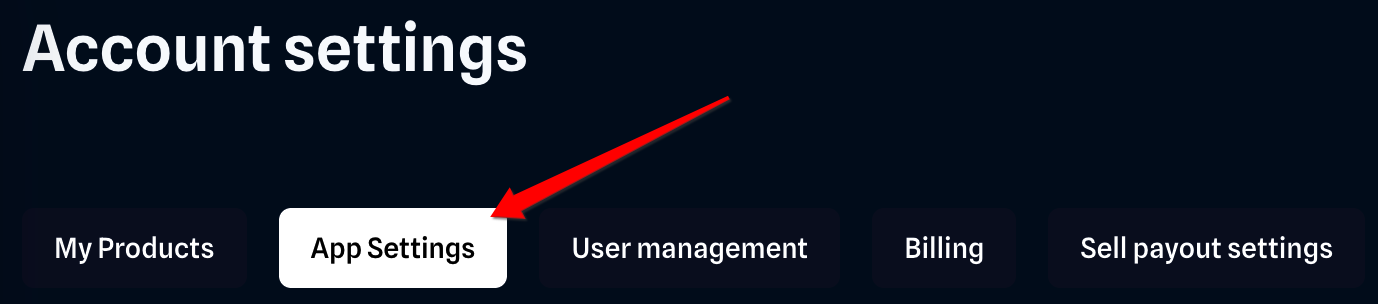
Once you're on the Account Settings page, you'll see several tabs available. Click on the "App Settings" tab to view your application configurations.
Step 4: Select Your Application
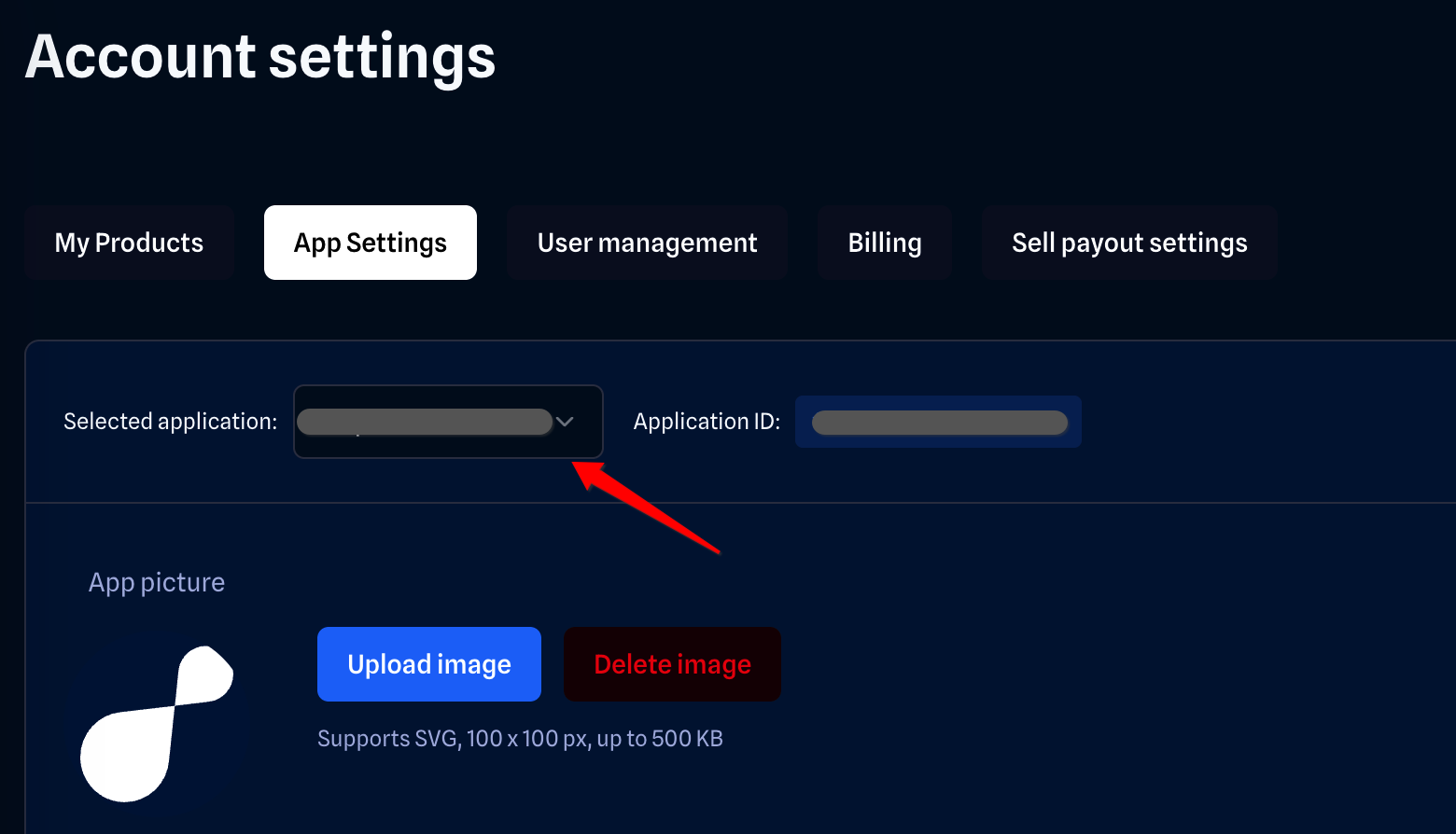
In the App Settings section, locate the "Selected application" dropdown menu. Click on it to see all your available AppIds and select the one you want to get the API secret key for.
Step 5: Locate and Copy Your Client Secret
After selecting your desired application, find the "Client Secret" field for that AppId.
To view your secret key:
Click the eye icon next to the Client Secret field to reveal the hidden API key
Once visible, click the copy icon to copy the secret key to your clipboard
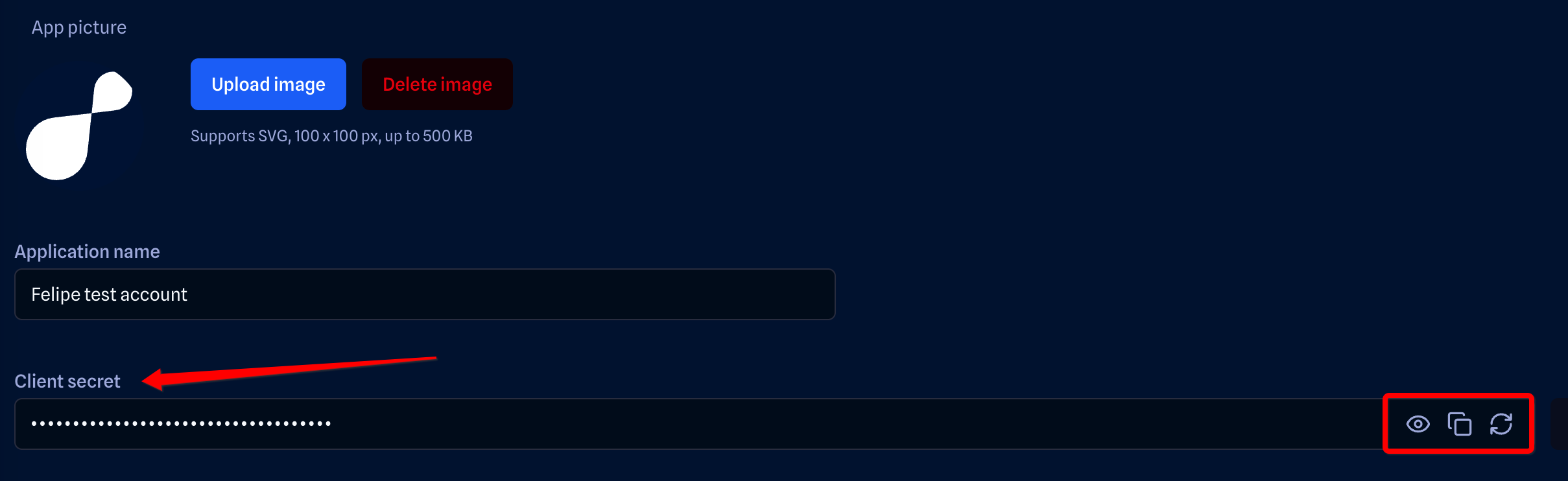
NOTE: You can also click on the refresh icon to rotate your API Key, if needed.
Important Notes
Security: Keep your API secret key confidential. Never share it publicly or include it in client-side code. If this happens, you can always rotate the API Key as shown above.
Multiple AppIds: You will have multiple AppIds (dev, staging and prod), each will have its own unique Client Secret. Make sure you're copying the correct one for your intended application.
Next Steps
Once you have your API secret key copied, you can use it to authenticate your API requests to Entri's services. Refer to our API documentation for specific implementation details and examples.
Need additional help? Contact our support team through the Entri dashboard or visit our help center for more resources.